
Boosting gaming performance is a common goal for many players, but not everyone has the budget or desire to upgrade their PC. Luckily, there are numerous ways to improve your gaming experience without purchasing new hardware.
By optimizing your system, tweaking software settings, and making small adjustments, you can see significant improvements in frame rates, load times, and overall gameplay. The following tips offer practical and effective solutions that anyone can try to elevate their gaming setup, no matter their budget.
1. Update Your Graphics Drivers
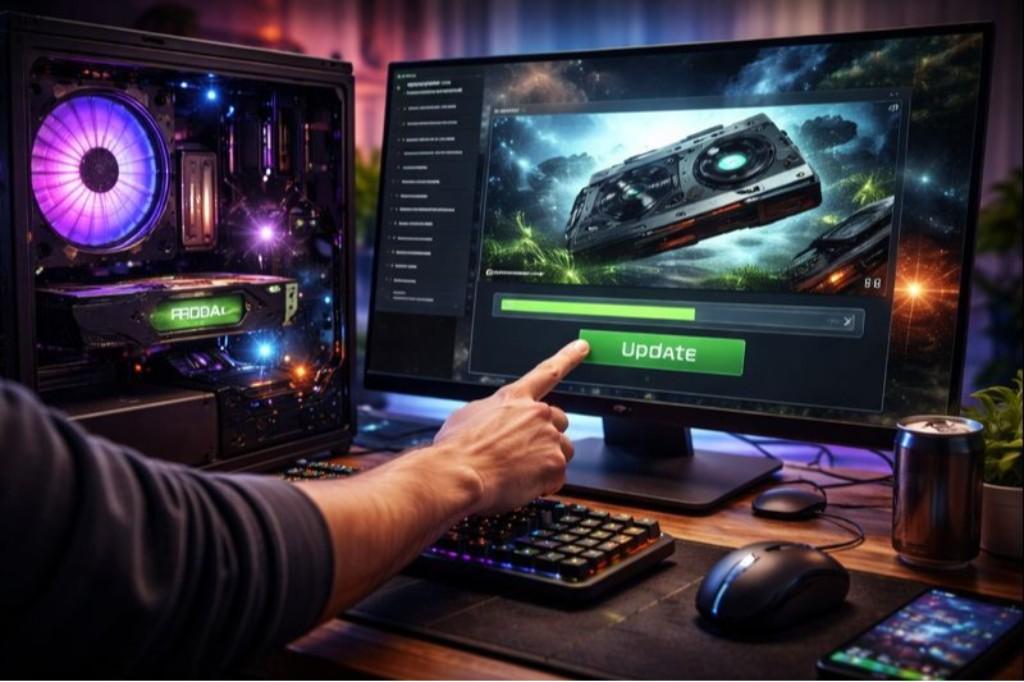
Outdated graphics drivers can cause performance drops and compatibility issues with newer games. Regularly updating your GPU drivers ensures you’re getting the best possible performance and access to the latest bug fixes. Both NVIDIA and AMD offer tools to automate the driver update process, or you can manually download the latest version from their websites.
Updating drivers not only improves performance but also ensures your system is optimized for modern gaming. By keeping your drivers up to date, you can eliminate bugs and enhance graphical performance, allowing for smoother gameplay and better frame rates in newer titles.
2. Optimize In-Game Settings
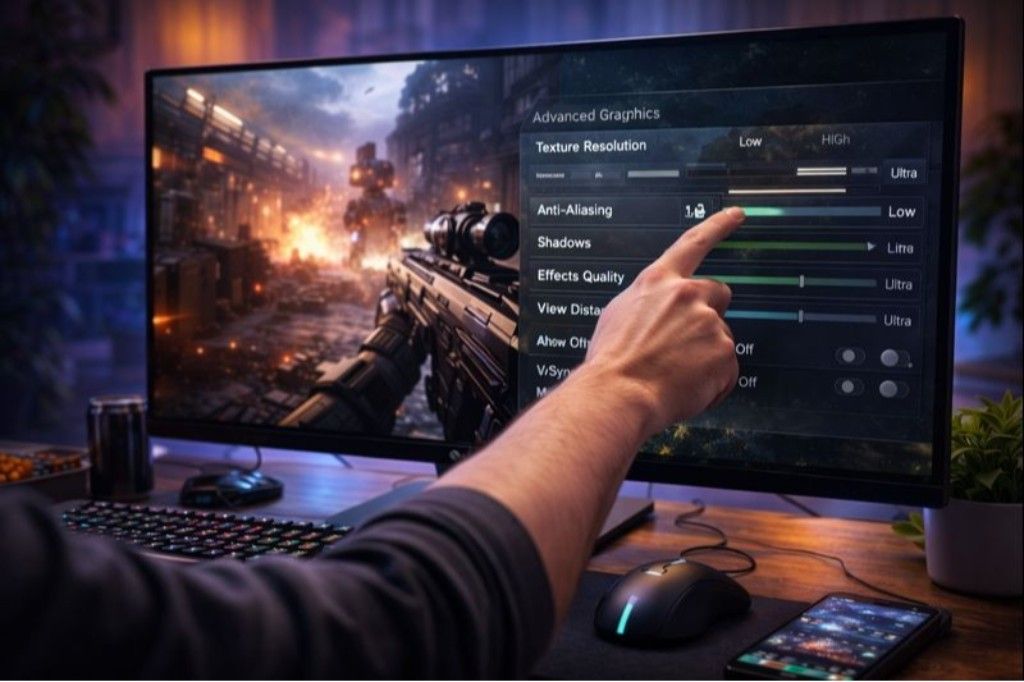
Optimizing in-game settings is crucial for improving gaming performance. Games come with preset configurations that can be adjusted for better frame rates. Lowering settings such as texture resolution, shadows, and anti-aliasing can result in a smoother experience.
Many modern games include optimization options that adjust settings based on your hardware, but manually tweaking them can yield better results. Turning off features like V-Sync can also boost frame rates by removing the cap on your GPU. Fine-tuning settings according to your system’s strengths and weaknesses can dramatically improve performance without requiring hardware upgrades.
3. Use Game Mode in Windows 10/11
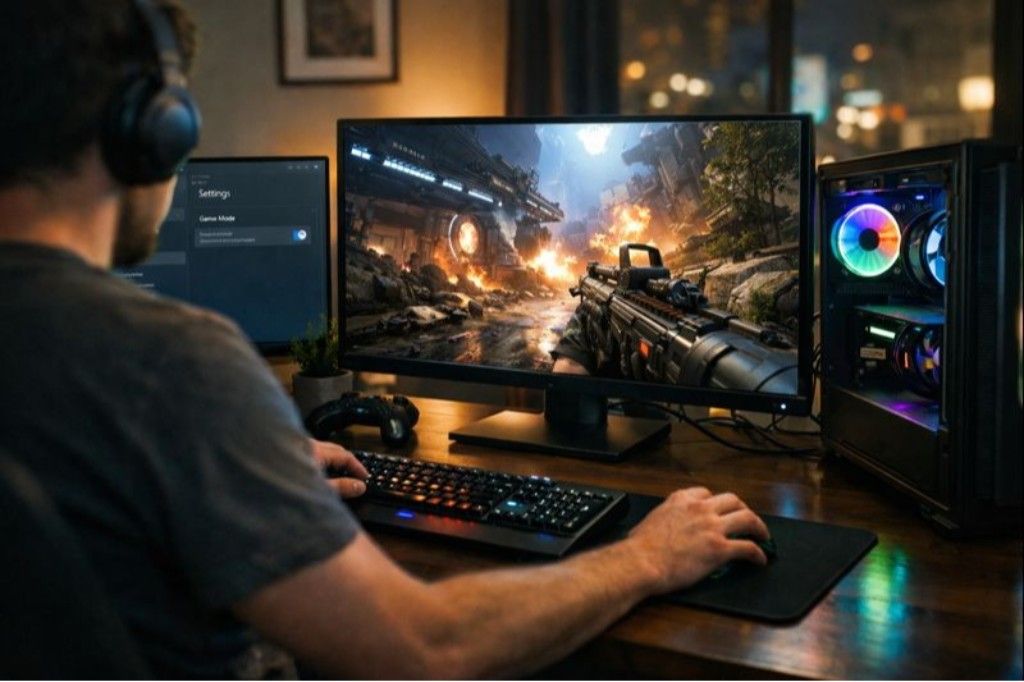
Windows 10 and 11 come with a Game Mode feature that prioritizes gaming performance by allocating more system resources to the game. Activating Game Mode reduces background processes and notifications, allowing your CPU and GPU to focus on the game.
This feature is particularly useful for systems with limited resources, ensuring that your game gets the maximum possible power. To activate Game Mode, open the Settings menu, go to the Gaming section, and toggle it on. This simple, built-in tool can make a noticeable difference in gaming smoothness, especially for users with older PCs or mid-range hardware.
4. Disable Background Applications
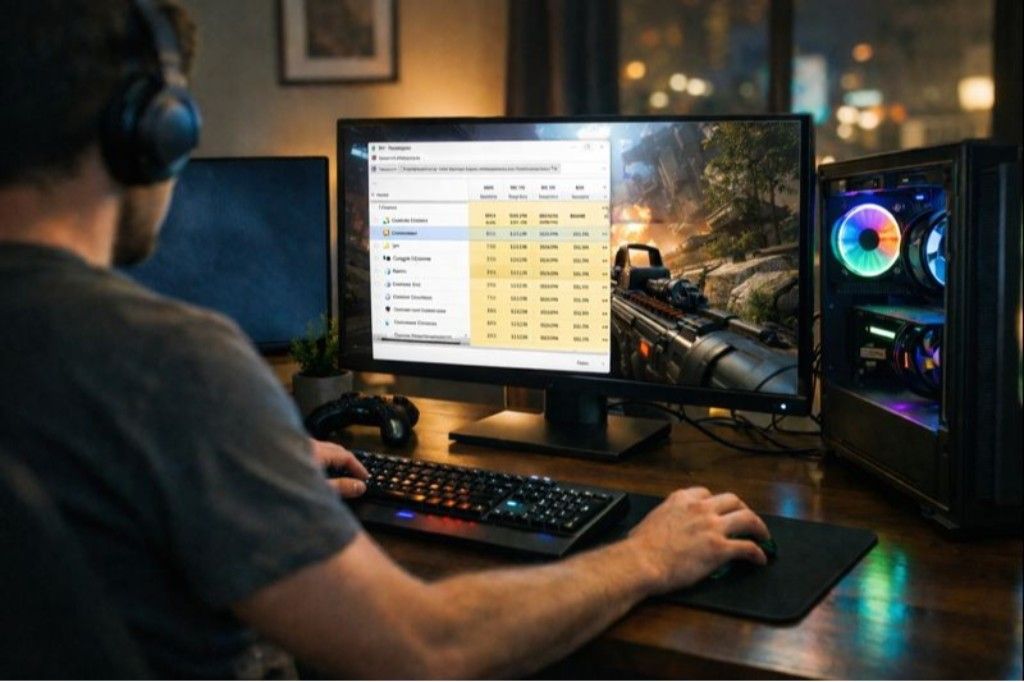
Running multiple applications while gaming can take a toll on your PC’s resources, causing slowdowns and performance drops. Before launching a game, close any unnecessary background apps like web browsers, email clients, or media players. These programs use CPU, RAM, and disk resources, which could otherwise be allocated to your game.
Task Manager in Windows allows you to see which apps are consuming the most system resources and shut them down. Disabling automatic updates and background notifications can also help prevent interruptions and further free up your system’s resources for a smoother gaming experience.
5. Adjust Power Settings
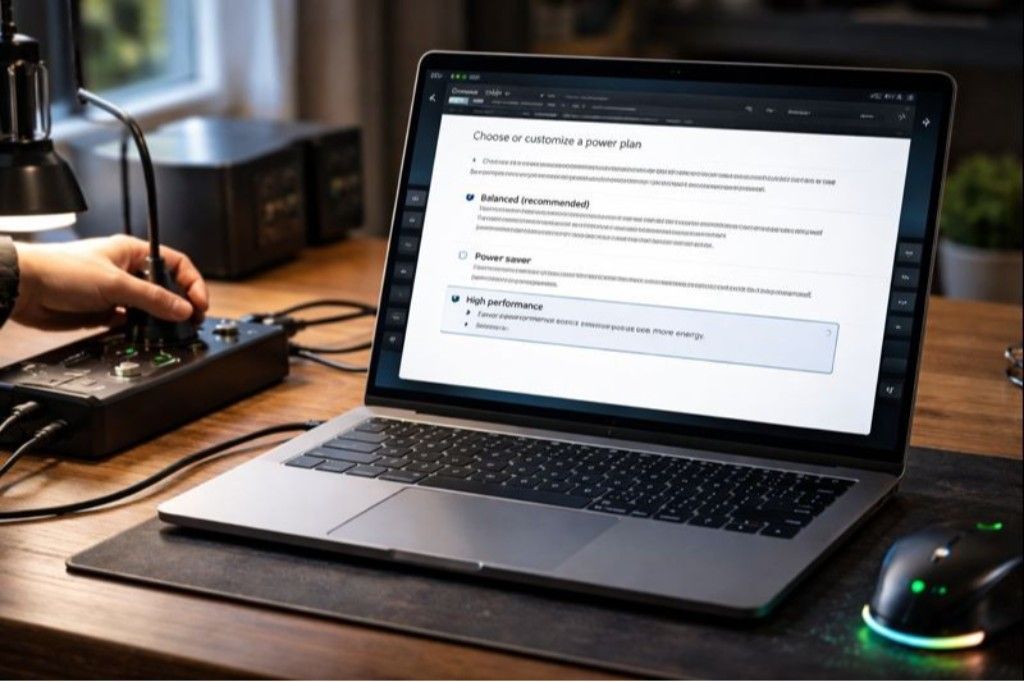
The power settings on your PC can impact its gaming performance. Many systems, particularly laptops, default to power-saving modes to conserve battery life, which can throttle CPU and GPU speeds. Switching to a “High Performance” power plan ensures that your hardware is running at its full potential.
For desktops, it’s also important to have your PC connected to a stable power source to prevent any energy-saving throttling. Adjusting these settings is easy: go to the Control Panel, select Power Options, and choose the High Performance plan. This adjustment can result in better performance, especially during extended gaming sessions.
6. Overclock Your CPU or GPU
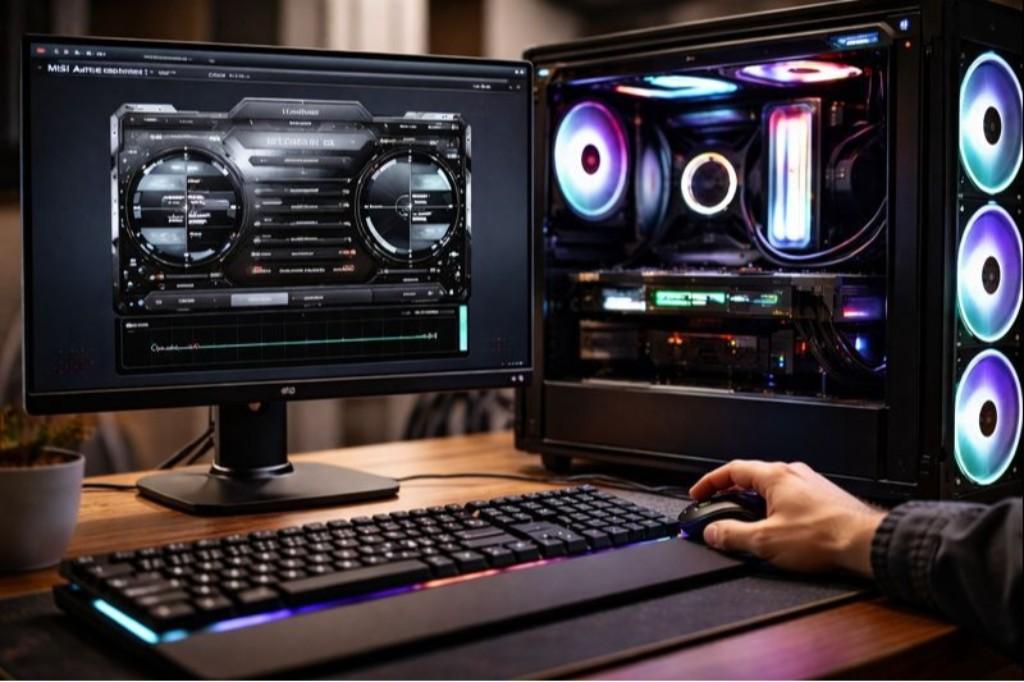
Overclocking involves increasing the clock speed of your CPU or GPU beyond the manufacturer’s default settings to gain extra performance. While it can cause higher heat generation, when done safely, it provides a noticeable boost in gaming performance. Modern CPUs and GPUs come with built-in overclocking features and software like MSI Afterburner or Intel’s Extreme Tuning Utility to help with the process.
It’s important to monitor temperatures to avoid overheating and system instability. If done correctly, overclocking can improve your frame rates and provide an edge in more demanding titles without needing a full hardware upgrade.
7. Install an SSD
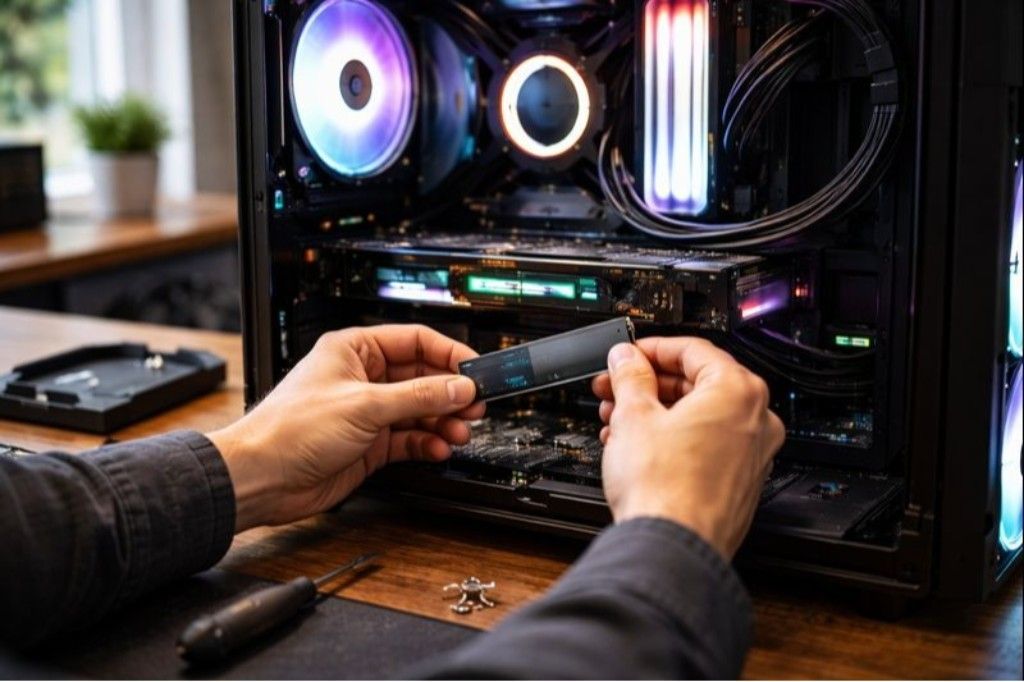
Switching from a hard disk drive (HDD) to a solid-state drive (SSD) is one of the most effective ways to speed up your PC’s performance. While an SSD won’t directly improve frame rates, it reduces load times drastically, making games load faster and improving overall system responsiveness.
Games stored on an SSD launch quicker, and texture loading and level transitions are smoother. Even if you don’t upgrade your graphics card, an SSD can enhance your gaming experience by cutting down on long waiting times, which is especially useful for large open-world games with lots of assets to load.
8. Clean Your PC Regularly
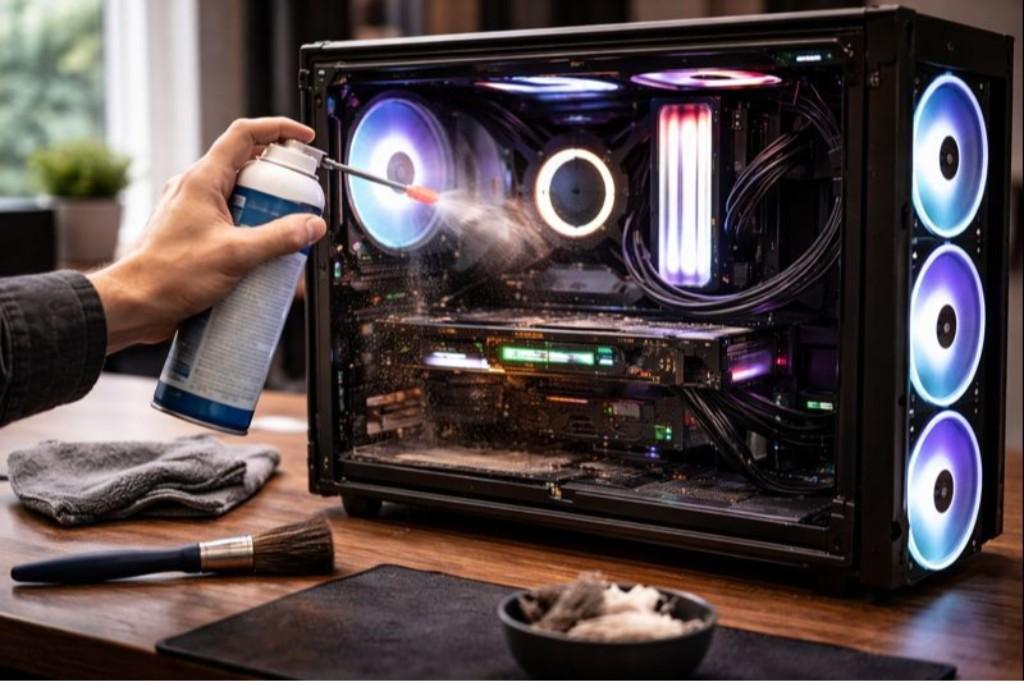
A buildup of dust and dirt inside your PC can obstruct airflow, causing components to overheat. When components like your CPU or GPU overheat, they throttle down to prevent damage, leading to slower performance. Regularly cleaning your PC using compressed air helps maintain optimal cooling efficiency.
Pay special attention to the fans, heat sinks, and vents, as these are critical for preventing heat buildup. A well-ventilated system will run more efficiently, ensuring that your components can maintain peak performance during long gaming sessions without the risk of thermal throttling.
9. Adjust Virtual Memory Settings
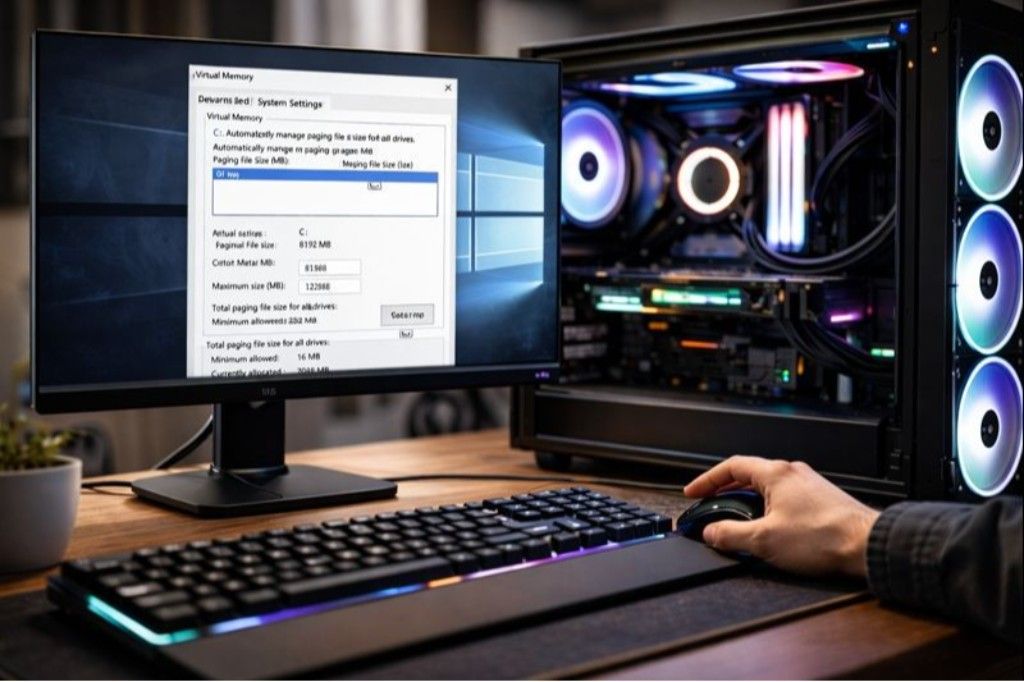
Virtual memory, or the page file, allows your system to use disk space as temporary RAM when physical memory runs out. Adjusting virtual memory settings can help improve gaming performance, particularly if your PC is equipped with less RAM. Increasing the size of your page file can prevent your system from slowing down when running memory-intensive games.
To adjust virtual memory, navigate to the system settings and increase the paging file size. While this won’t replace physical RAM, it can help prevent lag and stuttering in demanding games, ensuring a smoother overall gaming experience.
10. Upgrade Your RAM
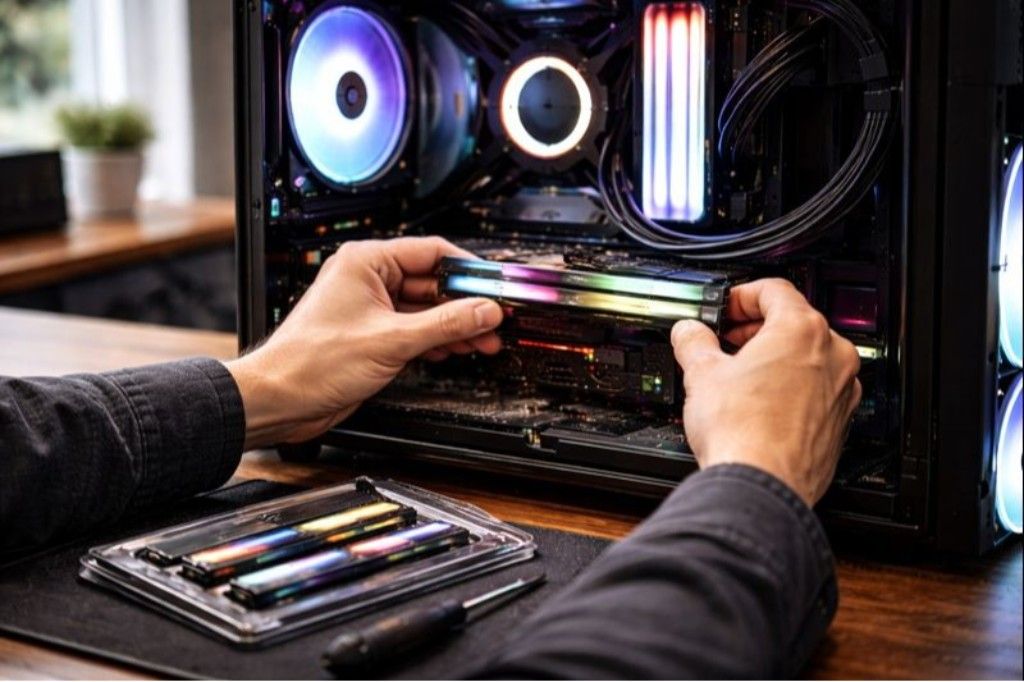
Upgrading your system’s RAM is a simple and effective way to boost gaming performance. Many modern games require at least 8GB of RAM, and some more demanding titles perform better with 16GB or more. If your system has 4GB or less, upgrading your RAM can dramatically improve performance, especially for multitasking or running large games.
More RAM ensures that your system can handle bigger game files and processes without slowing down, reducing load times and preventing stuttering during gameplay. It’s a relatively inexpensive upgrade that provides significant benefits, especially for gamers on a budget.
11. Tweak Your Internet Connection
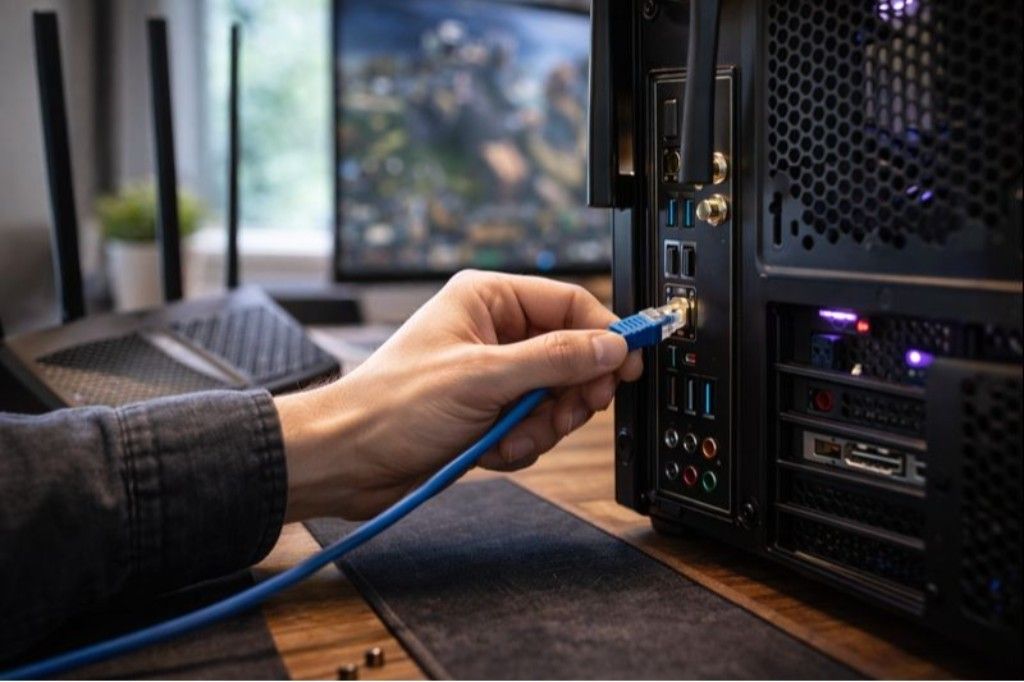
For online gaming, a stable and fast internet connection is essential for smooth performance. If you’re experiencing lag or high latency, switching to a wired Ethernet connection can help reduce ping and improve overall stability compared to Wi-Fi. You can also optimize your network by using Quality of Service (QoS) settings to prioritize gaming traffic over other activities like streaming or browsing.
Reducing the number of devices connected to your network during gaming can also prevent bandwidth throttling and ensure that your connection is as fast and stable as possible, giving you an advantage in competitive games.
12. Enable DirectX 12
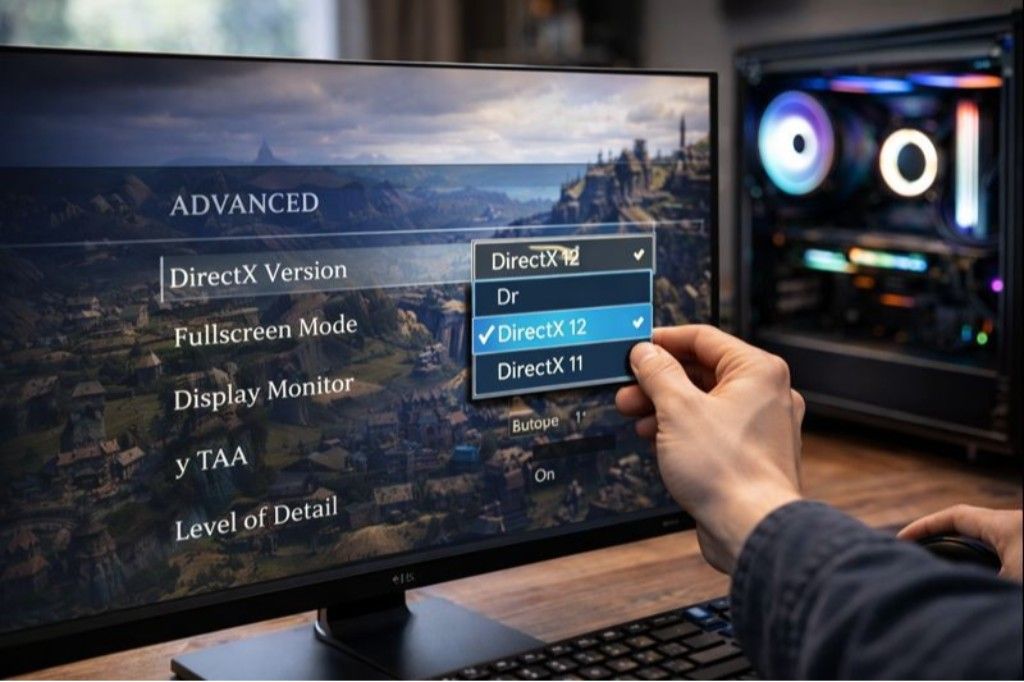
DirectX 12 is an API designed to enhance gaming performance by allowing better use of multi-core CPUs and more efficient rendering. By enabling DirectX 12, you can improve both frame rates and visual quality in supported games. Many modern titles support DirectX 12, and if your system has a compatible GPU, enabling it can lead to better performance.
Check the game’s settings to ensure that DirectX 12 is active. If you’re playing older titles, consider using DirectX 11, but for newer games, DirectX 12 can deliver substantial improvements, particularly in CPU-bound scenarios.
13. Lower Screen Resolution
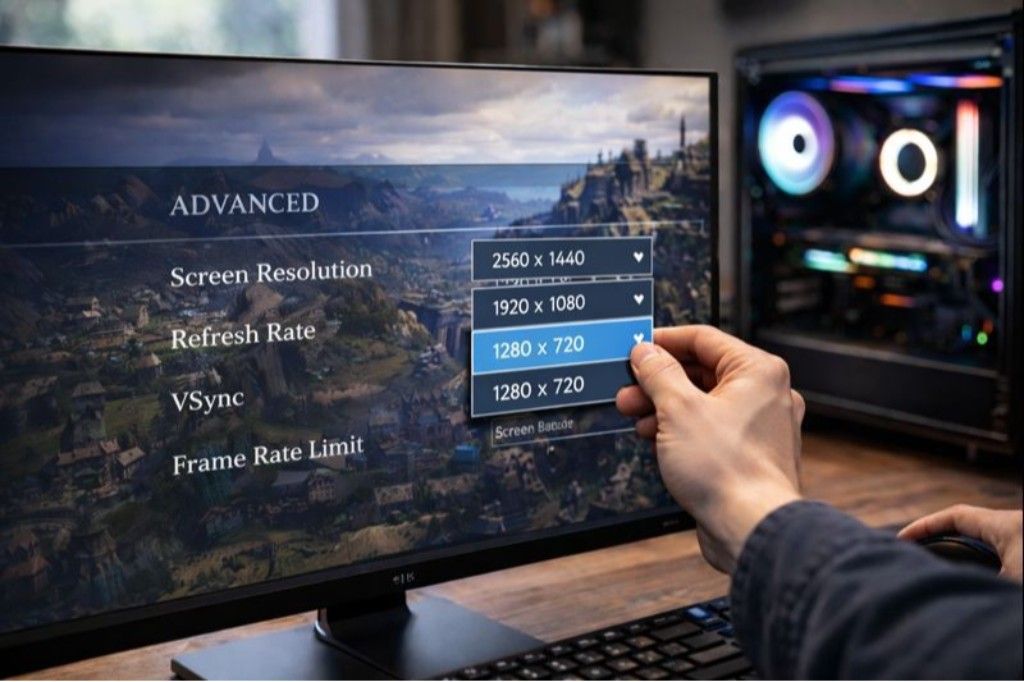
If you’re struggling with performance in graphically demanding games, lowering your screen resolution can help achieve smoother gameplay. While this may sacrifice visual fidelity, it can dramatically boost frame rates by reducing the number of pixels the GPU needs to process.
For players on mid-range systems, switching from 1440p or 4K to 1080p or 720p can make a noticeable difference without requiring any hardware upgrades. This is particularly useful for fast-paced action games where smooth gameplay is more important than ultra-high resolution, and it ensures that your system doesn’t get overwhelmed by the graphics load.
14. Adjust Graphics Settings via Control Panel
Most modern graphics cards come with control panel software that allows you to tweak global settings for improved performance. NVIDIA’s GeForce Experience and AMD’s Radeon software let you adjust features like texture filtering, anti-aliasing, and vertical sync (V-Sync).
By turning off unnecessary graphical enhancements such as anti-aliasing or motion blur, you can improve frame rates without sacrificing too much visual quality. Fine-tuning these settings gives you control over how your games look and perform, allowing you to find the optimal balance between smooth gameplay and visual appeal.
15. Reinstall the Game
If you’re noticing performance issues despite trying other methods, reinstalling the game might be the solution. Over time, game files can become corrupted or inefficient due to updates and patches. A clean install removes unnecessary files, restores optimal configurations, and can resolve any performance-related issues caused by corrupted data.
Additionally, reinstalling games can help remove old configurations that may be hindering performance. This is a simple and effective step to refresh the game, ensuring it runs as smoothly as possible without requiring any hardware changes.
Disclaimer: This article is for informational purposes only and does not constitute professional advice. Please consult a qualified professional for specific guidance.